Connecting a Jetty Runbook to Google Drive
This guide explains how to give a Jetty runbook access to a folder in Google Drive, so that the runbook can write files to the folder and, optionally, read files from it. The worked example is a runbook that writes a short haiku to a text file named with the current UTC time in epoch seconds (for example 1792614032.txt). The same setup applies to any runbook that saves reports, exports or other outputs to Drive, or that processes files placed in a Drive folder.
Time needed: about 20 minutes, one time.
Prerequisites:
- A Google account that owns, or can edit, the destination Drive folder
- Access to a Google Cloud project, or permission to create one
- A Jetty collection in which you can set environment variables and create tasks
curlandpython3on your machine, for the one-time token step
How it works
Runbooks run in an isolated sandbox and cannot use the Google sign-in in your browser. Instead, the runbook authenticates with three credentials that you store in the Jetty collection environment:
| Variable | Description |
|---|---|
GDRIVE_CLIENT_ID | The ID of an OAuth client that you create in Google Cloud |
GDRIVE_CLIENT_SECRET | The secret of that OAuth client |
GDRIVE_REFRESH_TOKEN | A long-lived token obtained by approving the client once in your browser |
During each run, the runbook exchanges the refresh token for a short-lived access token and calls the Google Drive API with it.
Scopes
The refresh token carries one or more OAuth scopes, which are fixed when the token is minted (Step 4). Decide which scopes the runbook needs before you begin, because changing them later means repeating Step 4.
| Scope | Grants | Use it when |
|---|---|---|
drive.file | Create files, and read or modify the files that the runbook itself created. No access to anything else in the Drive. | The runbook only writes files, or reads back its own output. The example runbook uses this scope. |
drive.readonly | Read every file that the approving account can see, in any folder. | The runbook reads files that people or other applications placed in the folder. See Reading files from Google Drive. |
drive | Full read and write access to every file that the approving account can see. | The runbook has to modify files that it did not create. |
The drive.file scope is sufficient to upload into a folder that the approving account created in the Drive web UI. The full drive scope is not required for writing.
Warning: A
drive.readonlyordrivetoken can read everything the approving account can see, not just the target folder. Mint such a token from an account that only has access to the folders the runbook needs, for example a dedicated account with which the folder is shared.
Note: Google service accounts are not used in this guide because they have no storage quota of their own. Uploads from a service account into a personal My Drive folder fail with
storageQuotaExceeded. Service accounts work only with Shared Drives. If the destination is a Shared Drive, a service account is a valid alternative. This guide covers the more common My Drive case.
Set up Google Cloud
Steps 1 to 4 are performed once, in the Google Cloud console and on your own machine.
Step 1: Enable the Google Drive API
- Open the Google Cloud console and select a project, or create one.
- Go to APIs & Services > Library, search for Google Drive API and click Enable.
If the API is not enabled, uploads fail with 403 … Google Drive API has not been used in project … or it is disabled.
Step 2: Configure the OAuth consent screen
Open Google Auth Platform (or APIs & Services > OAuth consent screen) and configure the following settings:
- Audience (user type). Select Internal if you use Google Workspace and only people in your organization will authorize the app. Internal apps have no token expiry issues and are recommended. Otherwise, select External.
- Data access (scopes). Add
https://www.googleapis.com/auth/drive.file. If the runbook reads files that it did not create, also addhttps://www.googleapis.com/auth/drive.readonly(see Scopes). - Publishing status (External apps only). Click Publish app so that the status changes to In production.
Important: The publishing status determines whether scheduled runs keep working. While an External app is in Testing status, Google expires its refresh tokens after 7 days: the runbook works for a week and then fails with
invalid_grant. In production, the token remains valid until you revoke it, or until it goes unused for 6 months.
Note: Google does not require a verification review for
drive.file.drive.readonlyis a restricted scope, but nothing changes for an Internal app, and for an External app that you created for yourself a review is needed only to remove the "Google hasn't verified this app" screen or to let more than 100 users authorize the app. When you approve the app in Step 4, you may see that screen. It is expected for an app you created yourself: click Advanced > Continue.
Step 3: Create an OAuth client
- Go to APIs & Services > Credentials > Create credentials > OAuth client ID.
- For Application type, select Desktop app and enter a name, for example
jetty-drive-runbook. - Copy the Client ID and the Client secret.
Step 4: Mint a refresh token
Save the following script as mint-drive-token.sh. It opens your browser for a one-time approval, then exchanges the resulting authorization code for a refresh token.
#!/usr/bin/env bash
# Mints a Google Drive refresh token (drive.file scope) for a Desktop OAuth client.
set -euo pipefail
: "${GDRIVE_CLIENT_ID:?set GDRIVE_CLIENT_ID}" "${GDRIVE_CLIENT_SECRET:?set GDRIVE_CLIENT_SECRET}"
PORT=8765
REDIRECT="http://localhost:$PORT/callback"
SCOPE="https://www.googleapis.com/auth/drive.file"
URL="https://accounts.google.com/o/oauth2/v2/auth?client_id=$GDRIVE_CLIENT_ID&redirect_uri=$REDIRECT&response_type=code&access_type=offline&prompt=consent&scope=$SCOPE"

echo "Opening your browser to approve Drive access..."
( open "$URL" 2>/dev/null || xdg-open "$URL" 2>/dev/null || echo "Open this URL: $URL" ) &

# Wait for Google to redirect back with ?code=...
CODE=$(python3 - "$PORT" <<'PY'
import http.server, sys, urllib.parse
class H(http.server.BaseHTTPRequestHandler):
    code = ""
    def do_GET(self):
        H.code = urllib.parse.parse_qs(urllib.parse.urlparse(self.path).query).get("code", [""])[0]
        self.send_response(200); self.end_headers()
        self.wfile.write(b"Done - you can close this tab.")
    def log_message(self, *a): pass
http.server.HTTPServer(("localhost", int(sys.argv[1])), H).handle_request()
print(H.code)
PY
)

# Exchange the one-time code for a refresh token
curl -s https://oauth2.googleapis.com/token \
  --data-urlencode "client_id=$GDRIVE_CLIENT_ID" \
  --data-urlencode "client_secret=$GDRIVE_CLIENT_SECRET" \
  --data-urlencode "code=$CODE" \
  --data-urlencode "redirect_uri=$REDIRECT" \
  -d grant_type=authorization_code \
| python3 -c 'import sys,json; d=json.load(sys.stdin); print("GDRIVE_REFRESH_TOKEN=" + d["refresh_token"]) if "refresh_token" in d else sys.exit("No refresh token returned: %s" % d)'
The script requests the drive.file scope. To request drive.readonly as well, change the SCOPE line as follows (%20 separates the two scopes):
SCOPE="https://www.googleapis.com/auth/drive.file%20https://www.googleapis.com/auth/drive.readonly"Run the script on your own machine with the client ID and secret from Step 3:
chmod +x mint-drive-token.sh
GDRIVE_CLIENT_ID=... GDRIVE_CLIENT_SECRET=... ./mint-drive-token.sh
When the browser opens, sign in as the Google account that owns the destination folder and approve access. The script prints GDRIVE_REFRESH_TOKEN=.... Handle this value as you would a password.
Configure Jetty
Step 5: Store the credentials in the collection environment
Add the three values as environment variables on your Jetty collection, using either the web app or the API.
Web app. Open Settings > Integrations and add GDRIVE_CLIENT_ID, GDRIVE_CLIENT_SECRET and GDRIVE_REFRESH_TOKEN.
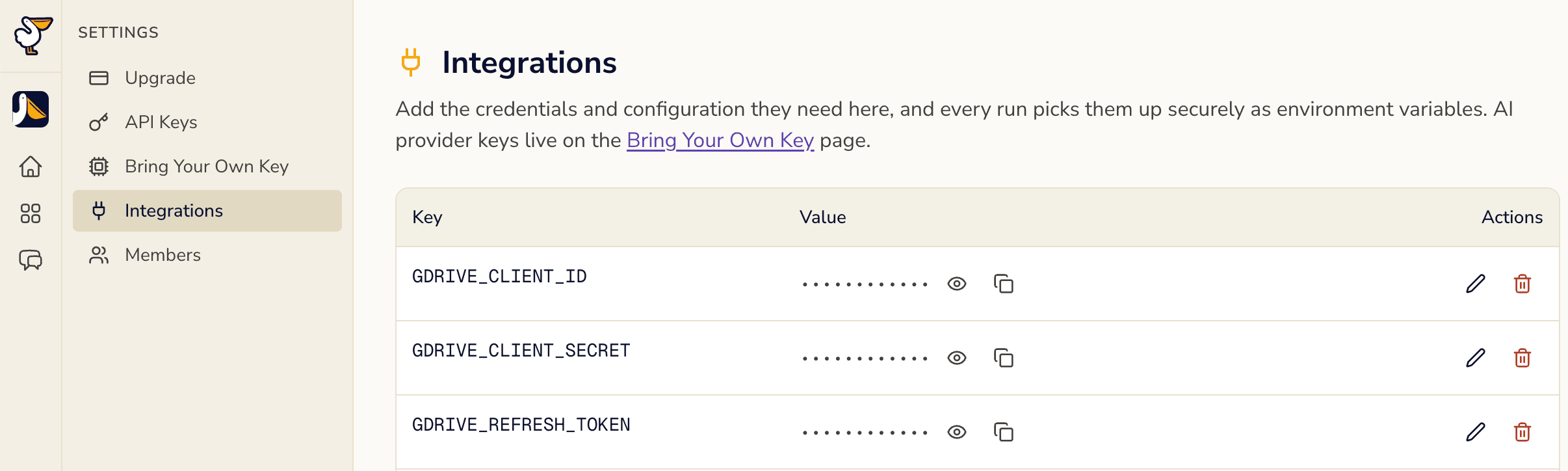
API. Send a PATCH request to the collection's environment endpoint. The body must be wrapped in environment_variables. The call merges these keys into the existing variables.
curl -X PATCH "https://flows-api.jetty.io/api/v1/collections/<your-collection>/environment" \
  -H "Authorization: Bearer $JETTY_API_TOKEN" \
  -H "Content-Type: application/json" \
  -d '{"environment_variables": {
        "GDRIVE_CLIENT_ID": "...",
        "GDRIVE_CLIENT_SECRET": "...",
        "GDRIVE_REFRESH_TOKEN": "..."
      }}'
Step 6: Declare the secrets in the runbook frontmatter
Important: A runbook receives only the environment variables that are listed in the
secrets:block of its frontmatter. Collection variables are not visible to the runbook otherwise. If the block is missing, the sandbox sees none of the three variables.
---
name: drive-haiku
version: 1.0.1
description: Write an original haiku and upload it to a Google Drive folder as <UTC epoch seconds>.txt
secrets:
  GDRIVE_CLIENT_ID: { env: GDRIVE_CLIENT_ID, required: true }
  GDRIVE_CLIENT_SECRET: { env: GDRIVE_CLIENT_SECRET, required: true }
  GDRIVE_REFRESH_TOKEN: { env: GDRIVE_REFRESH_TOKEN, required: true }
---
Step 7: Find the folder ID
Open the destination folder in Google Drive. The folder ID is the last segment of the URL:
https://drive.google.com/drive/folders/1Y_Cm0q8zWHQEN6LM_QSO1xGY_cGwgliO
                                       └──────────── folder ID ────────────┘
Pass the folder ID to the runbook as a variable rather than hard-coding it. The same runbook can then write to different folders, and a schedule can supply the folder at run time.
Create and test the runbook
Step 8: Create the task
The complete example runbook follows. Its Steps 1, 3 and 4 (preflight, upload and verify) are generic; Step 2 produces the content.
---
name: drive-haiku
version: 1.0.1
description: Write an original haiku and upload it to a Google Drive folder as <UTC epoch seconds>.txt
secrets:
  GDRIVE_CLIENT_ID: { env: GDRIVE_CLIENT_ID, required: true }
  GDRIVE_CLIENT_SECRET: { env: GDRIVE_CLIENT_SECRET, required: true }
  GDRIVE_REFRESH_TOKEN: { env: GDRIVE_REFRESH_TOKEN, required: true }
---

# Drive Haiku

You write one original haiku and upload it as a plain-text file to a Google Drive folder.
The file name is the current UTC time in Unix epoch seconds, e.g. `1792612345.txt`.

## Inputs

- Drive folder id: `{{folder_id}}`
- Theme (optional, may be empty): `{{theme}}`

Credentials are already in the environment: `GDRIVE_CLIENT_ID`, `GDRIVE_CLIENT_SECRET`,
`GDRIVE_REFRESH_TOKEN`. Never print, echo, or write their values to any file or log.

## Step 1 — Preflight

    mkdir -p /app/results
    for v in GDRIVE_CLIENT_ID GDRIVE_CLIENT_SECRET GDRIVE_REFRESH_TOKEN; do
      [ -n "${!v:-}" ] || echo "MISSING $v"
    done

If any variable is missing, write `/app/results/summary.md` saying which one, and stop.

## Step 2 — Write the haiku

Compose one original haiku (three lines, 5-7-5 syllables). If a theme was given, use it;
otherwise pick a seasonal image fitting today's date. Count the syllables of every line
and rewrite until each line is exactly 5, 7, 5. Save it to `/app/results/haiku.txt`
as exactly three lines followed by a trailing newline, with no title or other text.

## Step 3 — Upload

Run this exactly (it fetches an access token, then does a multipart upload into the folder):

    set -euo pipefail
    TS=$(date -u +%s)
    NAME="$TS.txt"
    cp /app/results/haiku.txt "/app/results/$NAME"
    AT=$(curl -sS https://oauth2.googleapis.com/token \
      --data-urlencode "client_id=$GDRIVE_CLIENT_ID" \
      --data-urlencode "client_secret=$GDRIVE_CLIENT_SECRET" \
      --data-urlencode "refresh_token=$GDRIVE_REFRESH_TOKEN" \
      -d grant_type=refresh_token | python3 -c 'import sys,json; print(json.load(sys.stdin).get("access_token",""))')
    [ -n "$AT" ] || { echo "token exchange failed"; exit 1; }
    printf '{"name":"%s","mimeType":"text/plain","parents":["%s"]}' "$NAME" "{{folder_id}}" > /tmp/meta.json
    curl -sS -X POST -H "Authorization: Bearer $AT" \
      -F "metadata=</tmp/meta.json;type=application/json; charset=UTF-8" \
      -F "file=@/app/results/$NAME;type=text/plain" \
      "https://www.googleapis.com/upload/drive/v3/files?uploadType=multipart&fields=id,name,parents,webViewLink" \
      | tee /app/results/drive_response.json

## Step 4 — Verify

`/app/results/drive_response.json` must contain an `id`, a `name` equal to `<TS>.txt`, and
`parents` containing `{{folder_id}}`. If it has an `error` instead, retry Step 3 once.
If the retry also fails, record the error message (never credentials) and stop.

## Step 5 — Summary

Write `/app/results/summary.md` with:
- the haiku
- the file name and Drive file id/link
- the result: `PASS` if Step 4 verified, otherwise `FAIL` with the reason
Adapting the example. Keep runbook Steps 1, 3 and 4 unchanged and replace Step 2 with your own work. Point the cp command at the file you produce, and set mimeType and the file's type= to match, for example text/csv for a CSV file or application/pdf for a PDF.
Task configuration. Create the task with default values for its variables, so that a run with no inputs still knows where to write:
"init_params": {
  "instruction": "<contents of RUNBOOK.md>",
  "vars": { "folder_id": "<your folder id>", "theme": "" }
}
Use the python312-uv sandbox snapshot or a similar one; the runbook needs only curl and python3. The runbook finishes in a few minutes, so a timeout_sec of 900 is sufficient.
Step 9: Run a test
Start a run from the Jetty web app, or with the API:
curl -X POST "https://flows-api.jetty.io/api/v1/run/<your-collection>/drive-haiku" \
  -H "Authorization: Bearer $JETTY_API_TOKEN" \
  -F 'init_params={"vars":{"folder_id":"<your folder id>","theme":"autumn"}}'
When the run finishes, its results include drive_response.json with the new file's id and webViewLink, and summary.md showing PASS. The file also appears in the Drive folder, for example:
1792614032.txt
─────────────────────────────
Cold wind strips the oak
leaves spiral down in silence
autumn holds its breath
Reading files from Google Drive
A runbook can also read from Drive, for example to pick up a CSV file that a colleague placed in the folder, or to summarize a Google Doc. The credentials, the collection variables and the secrets: block are the same as for writing. Two things differ: the token must carry the drive.readonly scope, and the runbook calls different API endpoints.
Requirements
The drive.file scope covers only files that the runbook created itself. Files that a person placed in the folder are invisible to it: a folder listing omits them, and fetching one by ID returns 404 File not found, even though the account that approved the token can open the file in the browser. In a folder holding one runbook-written file and one hand-uploaded file, a drive.file token lists only the first.
To read files that it did not create, the runbook needs the https://www.googleapis.com/auth/drive.readonly scope. If the current token has only drive.file:
- Add
drive.readonlyto the consent screen scopes (Step 2). - Mint a new token with the two-scope
SCOPEline (Step 4). The client ID and secret do not change. - Store the new
GDRIVE_REFRESH_TOKENon the collection (Step 5).
If the runbook only reads and never writes, request drive.readonly alone. The publishing rule from Step 2 still applies: keep the app In production, or the token expires after 7 days. For the access that drive.readonly grants, see Scopes.
List the files in a folder
Obtain an access token exactly as in Step 3 of the example runbook, then list the folder, newest first:
curl -sS -G -H "Authorization: Bearer $AT" "https://www.googleapis.com/drive/v3/files" \
  --data-urlencode "q='{{folder_id}}' in parents and trashed=false" \
  --data-urlencode "fields=files(id,name,mimeType,modifiedTime)" \
  --data-urlencode "orderBy=modifiedTime desc" \
  --data-urlencode "pageSize=100"
To find a single file by name, add and name='report.csv' to the q value. If the folder is in a Shared Drive, also pass supportsAllDrives=true and includeItemsFromAllDrives=true.
Download a file
Files that were uploaded as files (text/csv, application/pdf, images and so on) are downloaded as they are:
curl -sS -L -H "Authorization: Bearer $AT" \
  "https://www.googleapis.com/drive/v3/files/$FILE_ID?alt=media" -o /app/inputs/report.csv
Export a Google Docs, Sheets or Slides file
Google Docs, Sheets and Slides files have the mimeType application/vnd.google-apps.document, .spreadsheet or .presentation. They have no binary content to download, so alt=media fails with 403 Only files with binary content can be downloaded. Use Export with Docs Editors files. Export them to a plain format instead:
curl -sS -H "Authorization: Bearer $AT" \
  "https://www.googleapis.com/drive/v3/files/$FILE_ID/export?mimeType=text/markdown" -o /app/inputs/brief.md
Useful export types: text/markdown or text/plain for a Doc, text/csv for the first sheet of a spreadsheet, and application/pdf for any of them. Exports are limited to 10 MB.
Example: a fetch step for the runbook
Keep Steps 1, 3 and 4 of the example runbook and replace Step 2 with a fetch step. The following step downloads a file named by a new {{input_name}} variable into /app/inputs/, where the rest of the runbook can process it:
## Step 2 — Fetch the input

Run this exactly. It downloads `{{input_name}}` from the Drive folder into `/app/inputs/`:

    set -euo pipefail
    mkdir -p /app/inputs
    AT=$(curl -sS https://oauth2.googleapis.com/token \
      --data-urlencode "client_id=$GDRIVE_CLIENT_ID" \
      --data-urlencode "client_secret=$GDRIVE_CLIENT_SECRET" \
      --data-urlencode "refresh_token=$GDRIVE_REFRESH_TOKEN" \
      -d grant_type=refresh_token | python3 -c 'import sys,json; print(json.load(sys.stdin).get("access_token",""))')
    [ -n "$AT" ] || { echo "token exchange failed"; exit 1; }
    FILE_ID=$(curl -sS -G -H "Authorization: Bearer $AT" "https://www.googleapis.com/drive/v3/files" \
      --data-urlencode "q='{{folder_id}}' in parents and name='{{input_name}}' and trashed=false" \
      --data-urlencode "orderBy=modifiedTime desc" --data-urlencode "fields=files(id,mimeType)" \
      | python3 -c 'import sys,json; f=json.load(sys.stdin).get("files",[]); print(f[0]["id"] if f else "")')
    [ -n "$FILE_ID" ] || { echo "no file named {{input_name}} in the folder"; exit 1; }
    curl -sS -L -H "Authorization: Bearer $AT" \
      "https://www.googleapis.com/drive/v3/files/$FILE_ID?alt=media" -o "/app/inputs/{{input_name}}"
    wc -c "/app/inputs/{{input_name}}"

If the download fails, record the error message (never credentials) in `/app/results/summary.md` and stop.
Add input_name to the task's default vars next to folder_id. Because the token carries both scopes, the same run can read its input and upload its result with the unchanged Steps 3 and 4.
As with the upload step, give the agent the exact curl commands rather than an instruction such as "download the file from Drive". Left to improvise, a model tends to reach for gdown, the Python Drive client or a public share link, which are either missing from the sandbox or require the file to be public.
Running on a schedule
The runbook works unchanged on a Jetty schedule:
- Inputs. Scheduled runs pass
vars(folder_id,theme) into the runbook's{{…}}variables. If a schedule does not set them, the task's defaultvarsapply. - File names. Each run names its file with the current epoch second, so runs never overwrite each other.
- Concurrency. Google refresh tokens do not rotate when used, so overlapping runs are safe.
Before relying on a schedule, verify two things:
- Token lifetime. The OAuth app must be Internal or In production (Step 2). In Testing status, the schedule stops working after 7 days.
- Run results. A run can finish as completed even when the runbook recorded
FAILinsummary.md, for example because Google rejected the upload. For unattended schedules, checksummary.mdor the folder contents, or have the runbook send a notification on failure.
Troubleshooting
| Symptom | Cause | Fix |
|---|---|---|
summary.md says MISSING GDRIVE_… | The variables are not listed in the runbook's secrets: frontmatter, or are not set on the collection | Add the secrets: block (Step 6) and check the collection environment (Step 5) |
403 … Google Drive API has not been used in project … | The Drive API is not enabled in the OAuth client's project | Enable it (Step 1). Allow a few minutes for the change to take effect |
invalid_grant during token exchange | The refresh token expired (Testing status, 7 days), was revoked, or the account password changed | Publish the app (Step 2), mint a new token (Step 4) and update GDRIVE_REFRESH_TOKEN (Step 5) |
404 File not found: <folder id> | Wrong folder ID, or the token belongs to a Google account that cannot access the folder | Check the ID (Step 7), and approve access in Step 4 as an account with edit access to the folder |
storageQuotaExceeded | A service account is being used with a My Drive folder | Use the OAuth refresh-token setup in this guide, or a Shared Drive |
Step 4 printed no refresh_token | The client was approved before and Google did not issue a new token | The script forces a new token with prompt=consent. If it still fails, remove the app's access at myaccount.google.com/permissions and run Step 4 again |
404 File not found: <file id> for a file that is visible in Drive | The token has only drive.file, and the runbook did not create that file | Mint a new token that includes drive.readonly (see Reading files from Google Drive) |
403 Only files with binary content can be downloaded | The file is a Google Docs, Sheets or Slides file | Use the export endpoint with a mimeType instead of alt=media |
Security considerations
- Use
drive.filefor runbooks that only write. Adddrive.readonlyonly for runbooks that read files they did not create, and use the fulldrivescope only if a runbook has to modify such files. - A
drive.readonlytoken can read everything the approving account can see, not just the folder. Mint it from an account that only has access to the folders the runbook needs. - Keep the credentials only in the Jetty collection environment. Never put them in the runbook text or in the task's
vars. - The example runbook instructs the agent never to print the credentials. Keep that instruction when you adapt it.
- To revoke access immediately, remove the app at myaccount.google.com/permissions or delete the OAuth client in Google Cloud.